Last Modified: 8/14/2021
Location: FL, PR, USVI
Business: Part A, Part B
The purpose of the First Coast Medicare provider websites,
medicare.fcso.com (
English) and
medicareespanol.fcso.com (
Spanish) is to furnish Medicare news, information, and resources to providers. Site navigation for both provider websites has been designed to enable visitors to find the information they need as quickly and as easily as possible. This guide will focus exclusively on the navigation and layout of
medicare.fcso.com.
Note: For the best viewing experience, Internet Explorer (version 10 or higher) or Firefox (version 31 or higher) is recommended.
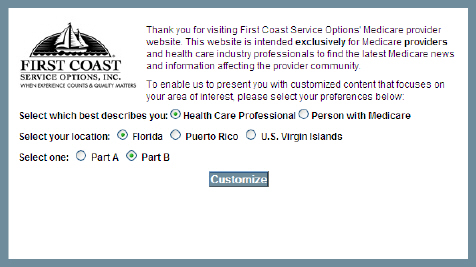
Visitors to the First Coast Medicare provider website are required to set three information preferences upon entry:
• Select which best describes you: Health Care Professional or Person with Medicare
• Location: Florida, Puerto Rico, or the U.S. Virgin Islands
• Line of business: Part A (hospital insurance) or Part B (medical insurance)
Once these preferences have been set, information will be displayed in accordance with those preferences. For example, if a provider indicates their line of business is Part B and their geographic location is Puerto Rico, only articles, forms, and fee schedules pertaining to Part B providers in Puerto Rico will be displayed.
This feature enables providers to find relevant information they need more quickly, because they do not have to sift through information that does not pertain to them. The settings are stored through the use of persistent cookies. To find more information on persistent cookies, you may view our
privacy policy.
Note: These preferences may be set or changed at any time during the provider’s visit to the site by clicking on the location or line of business links under the First Coast logo.
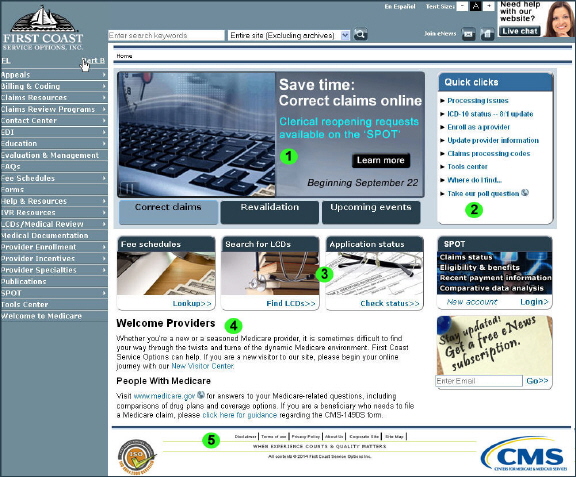
1. Promotional area: One of the first things you will notice on the provider website home page is the promotional section. This area is frequently updated based on hot topics.
2. Quick clicks: This section contains links to top accessed sections of the website, and other important or urgent information.
3. Featured items: This section features convenient one-click access to some of our best self-service tools.
4. Welcome Providers: Underneath the promotional area and featured items is the’ Welcome Providers’ section. This guides providers to learn more about First Coast and also includes a link to Medicare.gov in the event a beneficiary should find him or herself on the provider site.
5. Footer: At the very bottom are links to First Coast’s privacy policy, disclaimer, and terms of use for the provider websites. This area also provides widget links to the CMS website, QMI-SAI Global, the entity that oversees ISO certification.
1.
Search tool: This tool, which appears on every page of the provider website, is comprised of three components -- the search criteria box, search parameter menu, and search button. To find out more, please refer to our
Search help guide.
• Note: When using the
site map, a helpful tip is to use the find functionality in your web browser (typically CTRL+F on your keyboard). Simply enter the keyword you are looking for and all events of that keyword will be found on the page.
2.
Link to companion provider website: This link offers visitors quick access to the Spanish version of the provider website,
medicareespanol.fcso.com.
3. Text size adjustment tool: This tool offers visitors the option to adjust the size of the text displayed on the provider website. The default setting is medium, however this can be adjust clicking the “-” or “+” on either side.
4. Join eNews: Subscribe to First Coast’s free eNews communication.
5.
Email link: This icon, which appears on every page of the provider website, offers visitors the opportunity to easily share content though sending links to various email addresses pointing to specific pages. Visit a related
help document for more information.
6.
Print link: This icon, which appears on every page of the provider website, offers visitors a printer-friendly version of the content found on the page. Visit a related
help document for more information.
7. Live chat image: Live chat is available for website-related inquiries, Monday – Friday, 10 a.m. – 2 p.m. ET.
Note: Keep in mind that navigational items are also set based on your location and line of business selections.
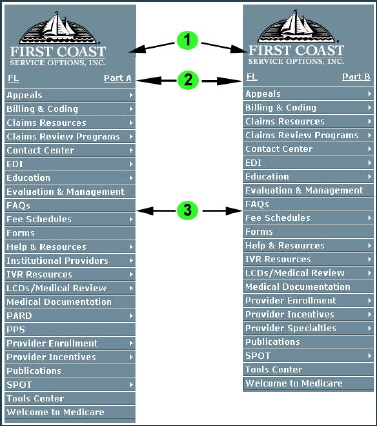
1. First Coast’s logo: Clicking the First Coast logo, located on the top-left corner of every page, will take you back to the home page of the provider website.
2. Location and line of business: Located under the First Coast logo lists your current location and line of business, which were selected upon entry. Clicking either of these links, which appear on every page of the provider website, offers visitors the option to change their geographic location (Florida, Puerto Rico, or the U.S. Virgin Islands) or line of business (Part A (hospital insurance) or Part B (medical insurance). Note: Visitors are required to set both options upon entry.
3. Left navigation menu: This navigation menu, which appears on every page of the provider website, provides visitors with an efficient and organized way to find relevant content.
• This is the easiest way to navigate the website. While it may take a little time to learn the categories, once you know where to look, it’s fast and convenient.
• Note: You may also use the breadcrumb trail as additional navigation help (located between the two-color indicator lines above the title of every page). The breadcrumb trail will display your “site location” (i.e., the title of the page or article being viewed) as well as a “path indicator,” which furnishes links to major elements of the path back to the website’s home page.
• Each item on the main level of the left navigation menu is a link that guides you to the main content page for each section. These pages typically contain links and descriptions to related sub-categories.
• Most lines of the navigation menu include a small arrow that leads to a second- or third-tier of navigation. These tiers are also known as flyout menus. Once you become familiar with the site navigation, the flyout menus are the fastest way to access the information on the interior pages of the website.
First Coast Service Options (First Coast) strives to ensure that the information available on our provider website is accurate, detailed, and current. Therefore, this is a dynamic site and its content changes daily. It is best to access the site to ensure you have the most current information rather than printing articles or forms that may become obsolete without notice.