Last Modified: 2/17/2024
Location: FL, PR, USVI
Business: Part A, Part B
The search tool utilized on the First Coast Service Options’ (First Coast) Medicare provider website allows you to customize your search so that you can find what you’re looking for quickly and easily. You’ll find the search tool in the upper-right corner of every page of the provider website.
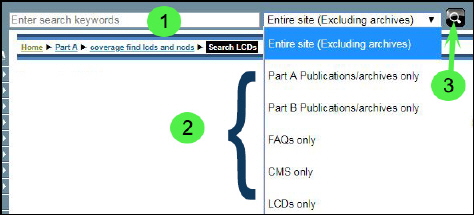
The search tool includes three main components:
1. Search criteria box -- use this field to enter your search based upon a single keyword, a series of keywords, or a phrase.
2. Search parameter menu --use this helpful drop-down menu to set the scope of your search to specific areas of the First Coast Medicare provider website or the Centers for Medicare & Medicaid (CMS) website.
3. Search button -- use this button to execute your search.
Note: Your search will
not include publications/archives (unless specifically selected as a search parameter). The best method to search for LCDs, is to utilize
First Coast’s LCD lookup tool.
The first step in forming a successful search query is to define your search criteria by entering a keyword, phrase, or series of keywords into the Search criteria box. Search terms may be alphabetic, numeric, or alphanumeric and must be at least three characters long.
Note: The criteria you select will define your search and should not only be as specific as possible but also be constructed to maximize the quality of results returned.
Search criteria (keyword) general guidelines
• Use specific keyword(s)
Sample search: Looking for information about the CMS-1500 form
Search criteria: Type 1500 form (instead of forms)
• Expand your search by linking keywords with “OR” -- matches to either search term will be returned
Sample search: Looking for information about the humanitarian devices or investigational devices
Search criteria: Type humanitarian OR investigational
• Narrow your search by linking keywords with “AND” -- only matches containing all search terms will be returned
Sample search: Looking for information about opt-out and private contracts
Search criteria: Type opt-out AND private contracts
Tip: If you’re searching for information related to a specific change request (CR), enter your search criteria in this format: MMxxxx OR CR xxx -- this will help you find the article more quickly.
Setting the parameters of your search is just as important as determining your search criteria. The scope of your search can be further refined by making a selection from the Search parameter menu.
Search parameter options
• Entire site (excluding archives) -- restricts your search to the First Coast Medicare provider website but does not search the First Coast publications archive. Items typically fall into archives after 120 days of being on the provider website.
• Part A publications/archives only -- restricts your search to the First Coast Part A publications archive
• Part B publications/archives only -- restricts your search to the First Coast Part B publications archive
• FAQs only -- restricts your search to the FAQ section of the First Coast Medicare provider website
• CMS only -- restricts your search to the CMS website and excludes the First Coast Medicare provider website
• LCDs only – restricts your search to return medical policies -- Local Coverage Determinations (LCDs)
Once you have defined your search criteria and set the parameters of your search, you may either click the Search button or press the Enter key to execute it. If the search tool finds results matching your search criteria and parameters, the search results page will appear. If your search is unsuccessful, you will have the opportunity to modify your search or begin a new search.
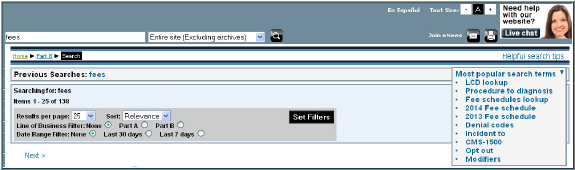
Once the results of your search have been returned, the Search criteria box will temporarily “store” the keyword(s) you have entered. If your search query was successful, the Search results bar and the Previous search criteria bar will display above the results of your search.
The Search results page will display:
• Previous searches
• Sort option – Sort by relevance or date
• Line of business filter – List all results or items related specifically to Part A or Part B
• Date range filter – List all results or items posted in the last seven or 30 days
• A link to helpful search tips
• Most popular search terms
Note: The default setting is to sort your results by relevance; however, the setting may be easily changed by clicking the hyperlink date. In addition, the line of business and timeframe are defaulted to display all results, but you may narrow the results by clicking the desired radio button.
The Previous Searches criteria bar will display up to three of your most recent searches. If you would like to return to a previous search, just click the corresponding hyperlink.
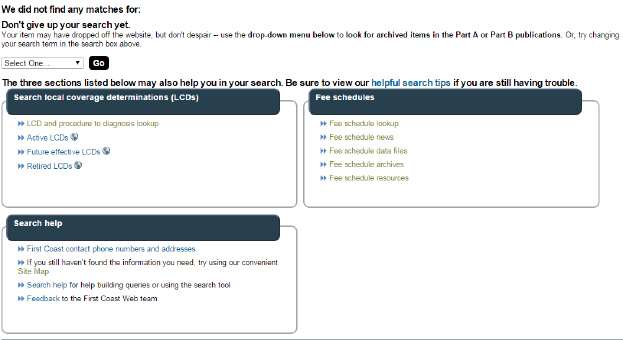
If your search is unsuccessful, you will be presented with a variety of options, many of which are dependent upon whether you set your location preference or your line of business prior to formulating your search. For more information regarding setting your location and line of business preferences, please refer to our
Navigation help for additional guidance. The
Previous search criteria bar will display up to three of your most recent searches. If you would like to return to a previous search, just click the corresponding hyperlink.
No search results options:
1. Search Part A Publications, Part B Publications, Google, or Yahoo!: Select your choice from the drop-down menu to change the target of your current search.
2. Search local coverage determinations (LCDs): This series of links offers you the option to view a list of Active, Future effective, or Retired LCDs for your specific geographic location and line of business. Note: If you have previously set your location and/or line of business (during your current visit), options will be displayed in accordance with those preferences.
3. Fee schedules: This series of links offers you the option to view the fee schedule page for your specific geographic location and line of business. Note: If you have previously set your location and/or line of business (during your current visit), options will be displayed in accordance with your previously set preferences.
4. Search help: This section includes the following options:
• First Coast contact phone numbers and addresses: This series of links offers you the option to view the First Coast contact telephone numbers and addresses for your specific geographic location and line of business. Note: If you have previously set your location and/or line of business (during your current visit), options will be displayed in accordance with those preferences.
• Site map: This page provides a list of all top level pages on the First Coast provider website.
• Helpful search tips: Learn how to build queries and use the search tool.
• Feedback: This option allows you to send feedback directly to the First Coast provider website team.
First Coast Service Options (First Coast) strives to ensure that the information available on our provider website is accurate, detailed, and current. Therefore, this is a dynamic site and its content changes daily. It is best to access the site to ensure you have the most current information rather than printing articles or forms that may become obsolete without notice.


 Step one: Setting your search criteria
 Step two: Establishing your search parameters
 Step three: Executing your search
 Step four: Sorting the results of your successful search