


New PS&R and MCReF sign-in experience
The CMS Identity Management system (IDM) released a new, streamlined sign-in experience, making the process more consistent no matter which application you’re trying to reach. This quick guide will tell you which options to choose in the new experience based on how you were accustomed to using the prior one for reaching PS&R and MCReF.
1. Previous sign-in page vs. new sign-in page
Based on how you are accustomed to using the previous sign-in page, identify what you’re trying to accomplish the previous way on the left and refer to the corresponding entry on the right for how to accomplish the same thing with the new sign-in page. The same information can be found in the annotated screenshot further down. For each new option, additional information can be found in the corresponding sections below.
| Per the previous sign-in page if you… | What to use on the new sign-In page |
|---|---|
| Entered your User ID and Password in the main fields at the top of the sign-in page and activated the “Sign In” button |
Activate the “Continue” button for the “EUA/IDM User ID” section (see section 2.1 for more information) |
| Activated the “Sign in with LOGIN.GOV” button | Activate the “Continue” button for the “Login.gov” section (see section 2.2 for more information) |
| Are looking to set up a new account and were directed to the “IDM User Registration” button | Activate the “Continue” button for the “Login.gov” section (see section 2.2.1 for information specific to setting up a new account) |
|
Are seeking self-help links like the “Forgot IDM User ID” or “Forgot IDM password” at the bottom |
Activate the “Continue” button for the sign in method the above rows direct you to. On the next screen that each of those options directs you to, self-help links for will be present below the User ID / Password fields. |
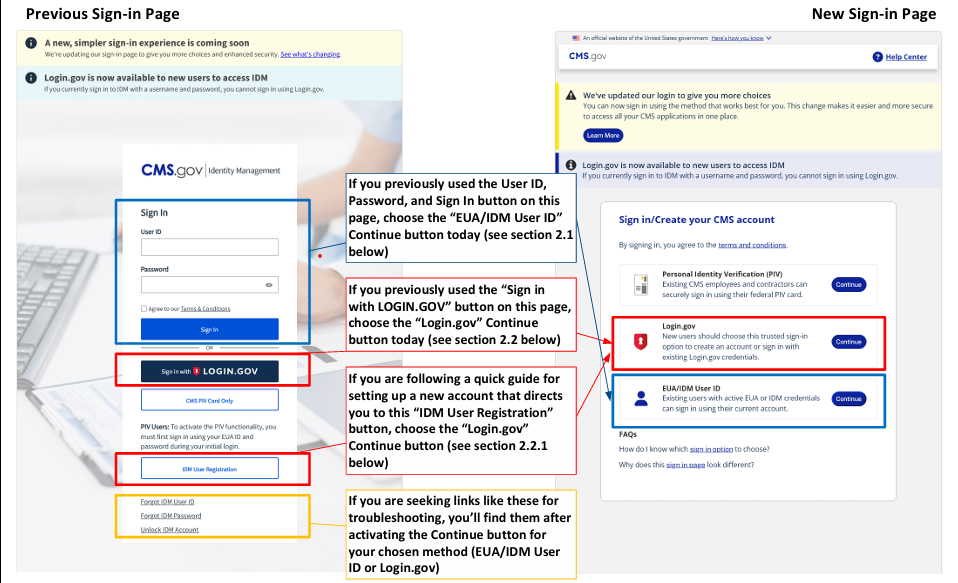
Figure 1: Previous Sign-In Page Vs. New Sign-In Page
2. If you select:
2.1 EUA/IDM User ID “Continue” Button
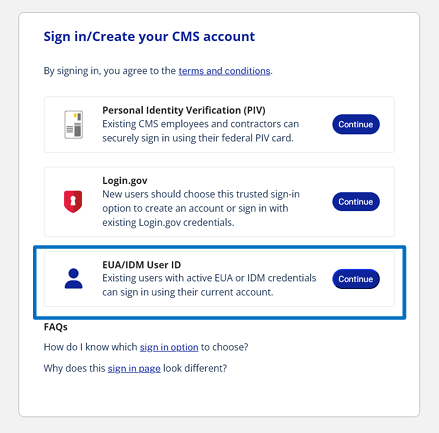
Figure 2: EUA/IDM User ID Continue Button
Selecting the EUA/IDM User ID “Continue” button (as highlighted above) will direct you to the following page:
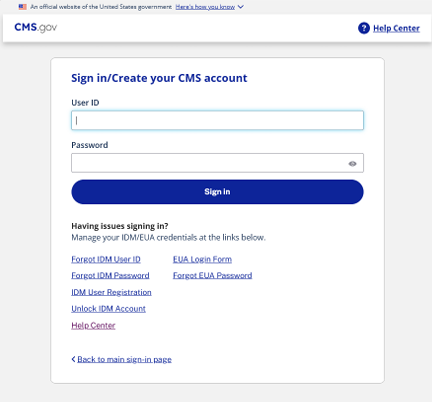
Figure 3: EUA/IDM User ID Sign-In Page
Enter the same User ID and Password that you previously entered on your main PS&R or MCReF sign-in page and activate the “Sign in” button. You will be prompted for your Multi-Factor Authentication as in the past, and upon successful authentication, you will arrive at your intended application (PS&R, MCReF, etc.). After logging in, you should not experience any other differences in the PS&R or MCReF application related to the new sign-in experience.
2.2 Login.gov “Continue” button
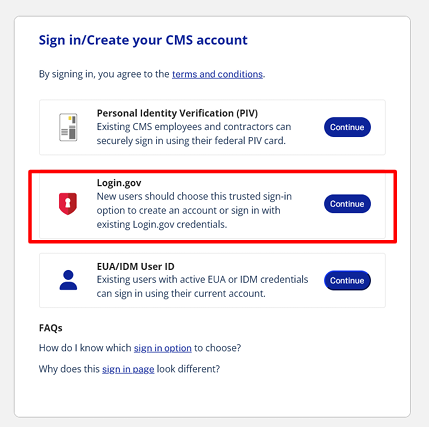
Figure 4: Login.gov Continue Button
Selecting the Login.gov “Continue” button (as highlighted above) will direct you to the following page.
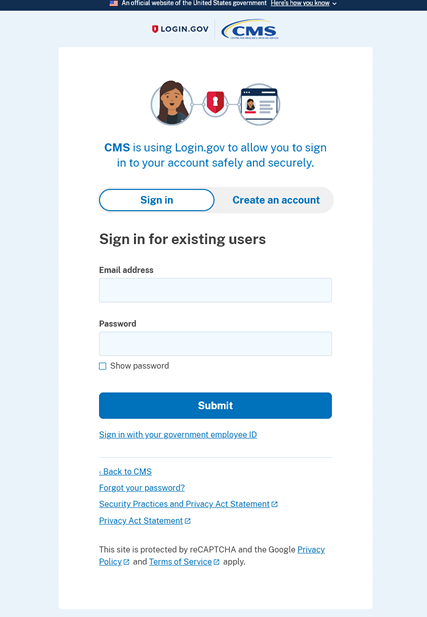
Figure 5: Login.gov Sign-In Page
This is the same sign-in page used for Login.gov users previously, just being reached via a different button. Proceed per usual from here (entering you email address and password, fulfilling any Multifactor authentication prompts, etc.). Upon successful authentication, you will arrive at your intended application (PS&R, MCReF, etc.).
2.2.1 New account registration
If you do not have an existing IDM account and are attempting to register for access to PS&R or MCReF, activate the “Continue” button for the “Login.gov” section on the new sign-in page as described in Section 2.2, and then activate the “Create an account” option at the top of the page as highlighted below.
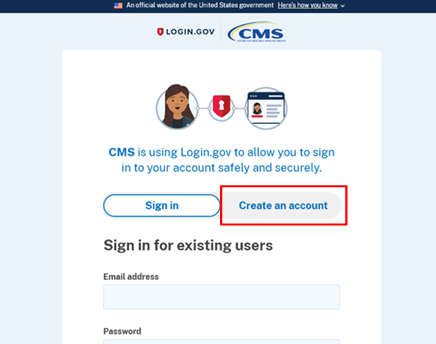
Figure 6: Create an Account Option on Login.gov
Selecting the “Create an account” option (as highlighted above) will present the “Create an account for new users” screen shown below.
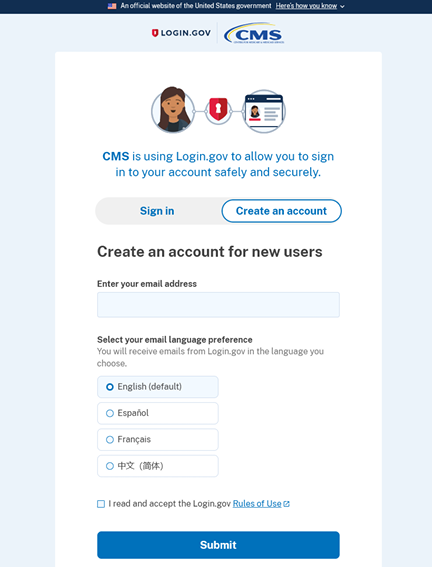
Figure 7: Login.gov Screen for Creating an Account
Follow the guidance on-screen to create a new Login.gov account. If you have questions while creating an account, refer to the “Help” link at the bottom of the page.
Upon finishing setting up your account, you can go to IDM, login with the guidance in Section 2.2 above, and proceed with requesting PS&R and/or MCReF access to your providers.